

I. Benefits of Installing Zoom and Registering an Account on a Computer
- A simple, easy-to-use interface.
- Good call quality with clear sound and images.
- Can work over Wi-Fi, 4G / LTE, and 3G networks.
II. How to Install Zoom and Register an Account on a Computer
1. Quick guide
Install Zoom on your computer: Visit here and download Zoom Client for Meetings.
Create a Zoom account for your computer
- Select Sign In.
- Select Sign Up Free.
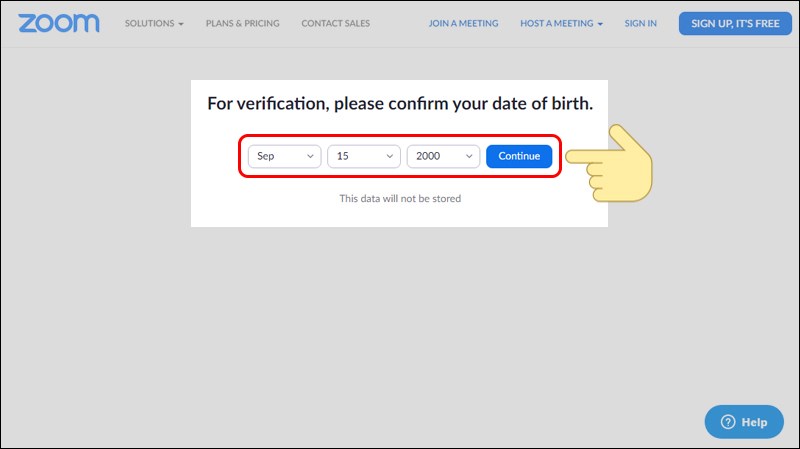
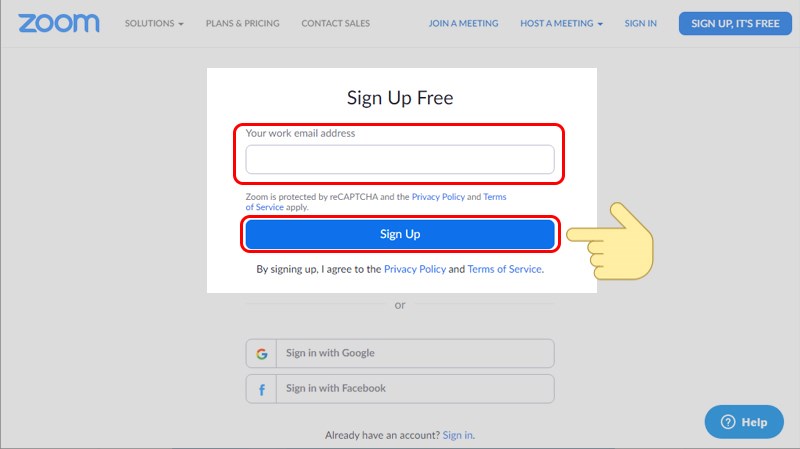
- Enter your date of birth and email address.
- Open your email account to activate your Zoom account.
- Enter your information and password.
- Invite more users to the conversation.
- Begin the conversation.
2. Detailed guide
Step 1: Visit here.
Step 2: Under Zoom Client for Meetings, select Download the app.
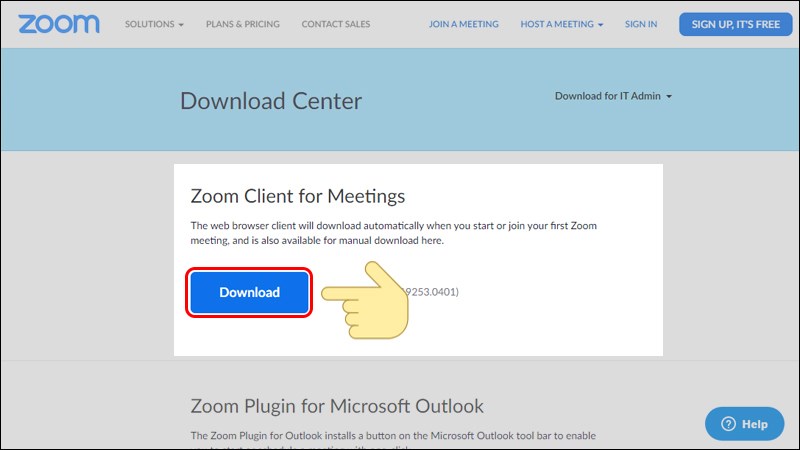
Create a Zoom account for your computer
Step 1: After installation is complete, launch the app and select Sign In.

Step 2: Select Sign Up Free to create an account.
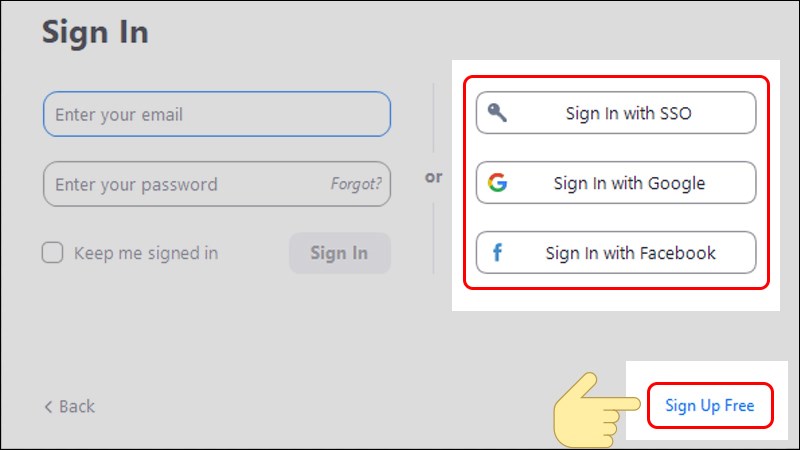
Note: Users can quickly create an account using existing SSO, Google, or Facebook accounts.
Step 3: Enter your date of birth already yours select Continue.
Step 4: Enter your email account yours and press Sign Up to register.
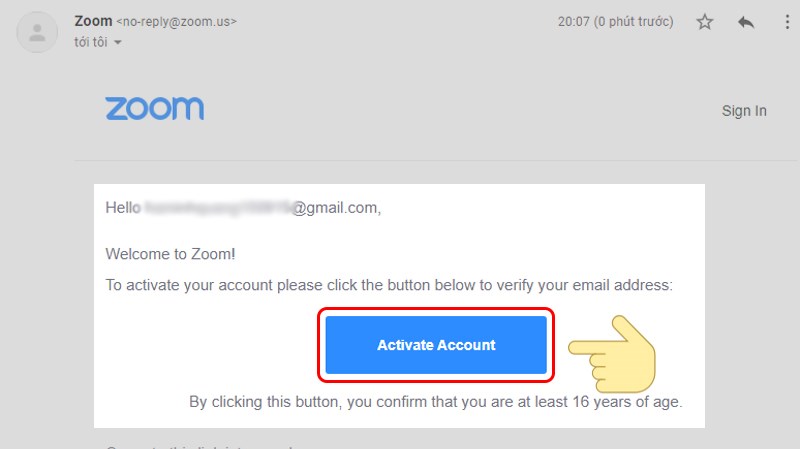
Step 5: Taccess your email account you just entered. Select Activate Account to activate your Zoom account.
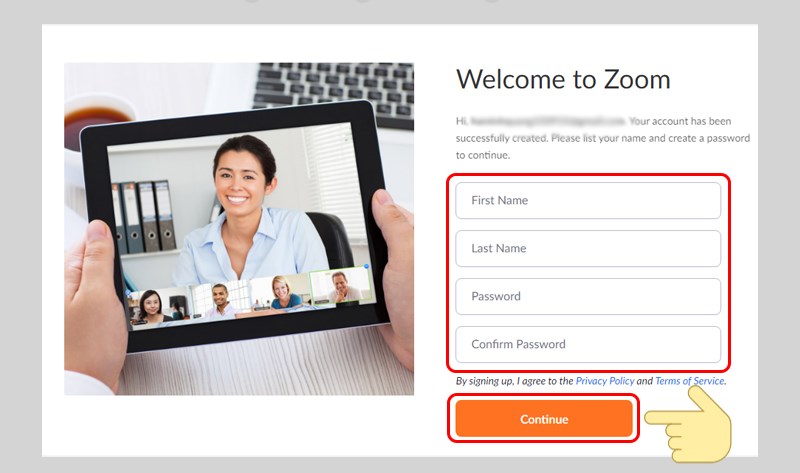
Step 6: Complete all information and password. Then select Continue to continue.
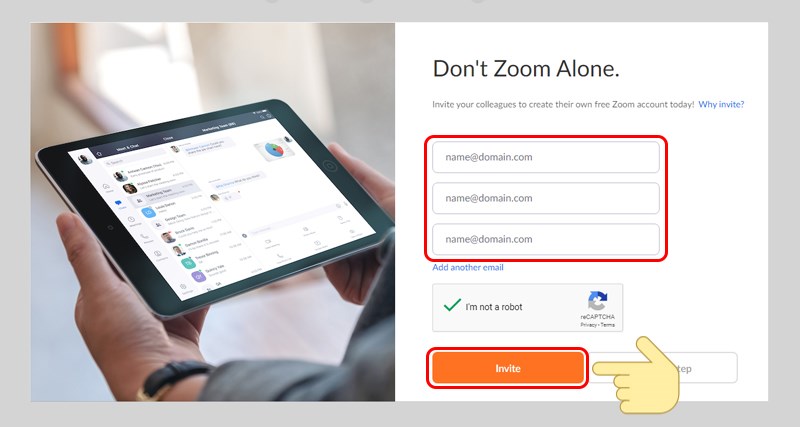
Step 7: Enter your email of the person you want to invite into the conversation, then press Invite.
Step 8: Finally, select Start Meeting Now to begin the Zoom conversation.

We hope this article helps you successfully install Zoom and register an account on your computer. If you find it useful, share it with others so they can learn about Zoom too!
Source: Thế Giới Di Động